by Michael Stelzner / May 5, 2026
Looking to create your own custom AI tools and automations without any coding or developer background? Wondering how Claude Code can assist?
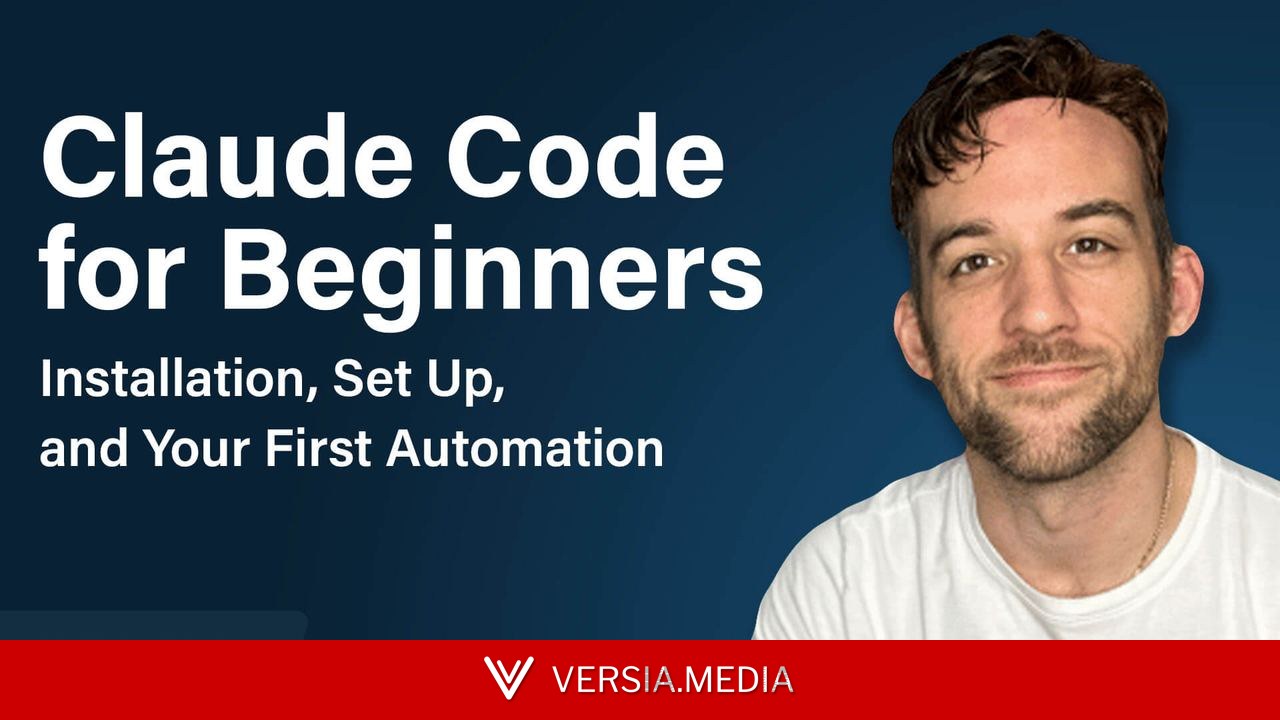
In this piece, you'll learn how to set up Claude Code from the ground up and build your first automation today.
The Case for Using Claude Code
The most common misunderstanding surrounding AI coding tools is the belief that coding skills are required to utilize them. According to Tyler Reed, today's AI models have advanced to the point where a programming background is no longer necessary for developing automations. He points out that many of the most active AI automation creators on YouTube have never written a single line of code in their lives.
Claude Code is Anthropic's agentic AI tool that enables you to build, automate, and connect applications using natural language—either by typing or speaking commands. It handles the research, writes the code, establishes connections between apps, and executes the tasks you request.
Before these tools existed, creating even a straightforward integration—such as linking your Gmail to your calendar—required hours of reading API documentation, obtaining credentials and secret keys, and debugging errors on forums like Stack Overflow.
Now, you simply describe what you want, and Claude Code determines the technical route to achieve it.
Two Prerequisites Before Using Claude Code
Before installing Claude Code, there are two things you need to understand.
First, to use Claude Code effectively, you'll need a paid Claude subscription. If you already have a paid Claude account, Claude Code will operate under that same subscription. If you don't have one, Tyler recommends the $20/month Pro subscription, which is ideal for beginners.
Second, Claude Code is a command-line interface (CLI) tool. This means you input your commands into a text-based window, rather than using a chat interface or clicking buttons in a visual environment.
On a Mac, you'll interact with Claude Code through your computer's terminal; Windows and Linux have their own equivalent systems. If you're unfamiliar with a terminal, Tyler describes it as a plain black screen with only text. It may look unfamiliar, but it's not complicated once you're inside.
Note: By default, Claude Code requests your permission before taking any action that affects your computer. Before it browses the web, creates a file, writes a document, or edits something in a folder, you'll see a prompt asking you to allow or deny each action.
#1: Step-by-Step Claude Code Setup
Getting Claude Code operational involves several distinct steps.
First, open your terminal.
Next, follow Anthropic's official documentation, which provides clear copy-and-paste installation commands for your operating system—whether Windows, Mac, or Linux.
Which AI Moves Are Truly Impactful?
The AI Business Society is your reliable guide. Gain access to expert-led training you can implement immediately, plus a community of marketers sharing what's actually working.
Copy the appropriate installation command and paste it into your terminal window. Press enter and wait as Claude Code installs.
When you see a confirmation message, type the word 'claude' in the terminal. Claude Code will start and prompt you to log in.
Using the login command opens a browser window where you authenticate with the email address linked to your Claude subscription. Once completed, you're inside Claude Code and ready to select the model you want to use.
#2: Terminal Basics With Claude Code
In the terminal, you'll use slash commands to access Claude Code's settings and features.
For example, to view the list of Claude models you can switch between during your work, type:
When working on a project in Claude Code, Tyler follows a specific two-step approach for model selection.
He starts with Opus during the planning phase because it offers the strongest reasoning capabilities and the largest context window, making it ideal for thinking through an app's structure or a document outline. Once the plan is solid, he switches to the latest version of Sonnet for coding and implementation, as Sonnet strikes a good balance between performance and token efficiency.
Another example involves context window management. In the bottom-right corner of the terminal, you'll see a percentage indicating how full your context window is. As your conversation progresses, you may notice it nearing capacity. To generate a summary of your conversation and continue working in the same session without restarting, type:
#3: Advanced Terminal Features With Claude Code
Once you're comfortable with Claude Code, two features significantly expand its capabilities over time.
Custom Skills
A custom skill is a set of instructions for a task you want to repeat. Tyler created a custom skill for YouTube research. When he uses the /youtube-research command, Claude Code accesses the internet and researches competitor YouTube channels, pulling their top videos from the last two weeks, their descriptions, and even downloading audio files for later transcription to analyze why specific videos performed well.
3 Days of World-Class Training—No Travel Needed!
Missed Social Media Marketing World and AI Business World this year? Get all the great content at a fraction of the cost with a Virtual ticket. This gives you full access to recordings of every keynote, workshop, and session—the ones people travel thousands of miles to see. Don't wait. Get your Virtual ticket and enjoy actionable content you can watch anytime, anywhere.
Creating a custom skill is simple. Describe the task you want Claude Code to remember and repeat, and ask it to create a skill from that description. Claude Code saves it as a markdown file on your computer and names it with a slash command.
The next time you open Claude Code, you can type that slash command in any session and execute the full task without re-explaining it.
Claude Markdown Files
Tyler recommends creating a markdown file for every project, as it gives Claude Code persistent memory of your project across sessions.
Ask Claude Code to create a CLAUDE.md file for your project by typing:
The resulting file is a plain-text summary of the project: what it does, what's been built, and what's in progress. Every time you open a new session and return to that project folder, Claude Code reads the markdown file and uses it as a reference.
#4: Build Your First Automation With Claude Code: Google Calendar and Telegram
Ready to build your first Claude Code project? Here's one that's perfect for beginners.
When you're done, you'll have created a custom assistant that reads your Google Calendar and sends you a daily briefing about the next day's schedule via Telegram, allowing you to check in from anywhere without opening your calendar.
Step 1: Connect Your Google Calendar
Open Claude Code and say:
Claude Code will guide you through the setup. If the steps feel too technical, Tyler suggests adding "explain like I'm five" to your prompt. He does this regularly so Claude Code can break down exactly what to do, step by step.
The process typically involves an OAuth sign-in via Claude Code to authorize access to your Google account, along with retrieving credentials and secret keys from Google's Developer Console. Once those credentials are in place, Claude Code writes the connection code for you.
Step 2: Set Up a Telegram Bot
Telegram is a free messaging app, similar to Facebook Messenger. A bot is simply a separate automated account within Telegram that you can message back and forth with.
Inside Claude Code, type:
You'll be guided through the configuration process to create and connect a Telegram bot. That bot becomes the communication channel between Claude Code and your phone.
Step 3: Start Using Your Automation
Once both connections are in place, return to Claude Code and type:
Claude Code will write the script that ties the two together and confirm when it's running.
From that point on, Claude Code will read your calendar, summarize your schedule for the next day, and automatically push that summary to your Telegram bot each morning.
The only requirement is that your Claude Code session remains open on your computer. As long as it's running in the background, you're connected.
Working With Your Automation
Once operational, the two-way nature of the Telegram connection allows you to make requests conversationally from your mobile device as well as your computer. For example, you can message your bot to ask about tomorrow's schedule, add something to your calendar, or ask it to help optimize the timing of your day's tasks.
Tyler Reed is an AI educator and consultant who teaches marketers, creators, and entrepreneurs how to build and automate with AI agents. Find tutorials and classes in his free educational community, AI Agency. Follow him on YouTube.
Other Notes From This Episode
Connect with Michael Stelzner @Stelzner on Facebook and @Mike_Stelzner on X.
Watch this interview and other exclusive content from Social Media Examiner on YouTube.
Listen to the Podcast Now
This article is sourced from the AI Explored podcast. Listen or subscribe below.
Where to subscribe: Apple Podcasts | Spotify | YouTube Music | YouTube | Amazon Music | RSS
✋🏽 If you enjoyed this episode of the AI Explored podcast, please head over to Apple Podcasts, leave a rating, write a review, and subscribe.
Stay Up-to-Date: Get New Marketing Articles Delivered to You!
Don't miss out on upcoming social media marketing insights and strategies! Sign up to receive notifications when we publish new articles on Social Media Examiner. Our expertly crafted content will help you stay ahead of the curve and drive results for your business. Click the link below to sign up now and receive our annual report!
Curious About How to Use AI?
Our newest show, AI Explored, might be just what you're looking for. It's for marketers, creators, and entrepreneurs who want to understand how to use AI in their business. It's hosted by Michael Stelzner and explores this exciting new frontier in easy-to-understand terms. Pull up your favorite podcast app and search for AI Explored. Or click the button below for more information.
Tags: AI Explored podcast